
REPLIES, COMPOSING & EDITING
Your intent. A draft you can make your own.
Reply with the conversation in view or write a new email from an instruction. Adjust the tone, improve the wording, translate the result and reuse the prompts your team needs often.
Gmail & Outlook · You review and send
Free Starter plan · No card required
See a customer reply take shapeReply with context
Choose the points to answer, the tone and your intent. Add instructions when the reply needs a particular detail.
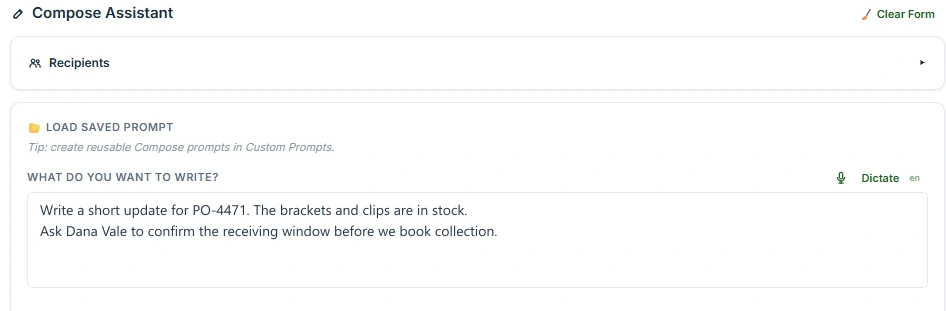
Start a new conversation
Describe the email you need or use a business template. Review both the subject and body before moving to your inbox editor.
Keep useful wording close
Improve a draft, translate it or load a saved Reply or Compose prompt instead of starting the instructions again.
FOLLOW A REAL-WORLD TASK
A precise answer to a delivery question.
A customer reply, prepared from your instructionsAn illustration of the workflow using example data.
YOU DOOpen Reply, enter the confirmed delivery details and choose your tone.
Your instructions set the answer.
- Tell the customer
- 40 units on the 18th; 60 on the 20th
- Ask
- Whether the split delivery works
- Tone
- Clear, courteous and concise
Supply information you have verified. Do not ask the draft to invent stock or delivery commitments.
YOU DOGenerate the reply and read it alongside the customer’s question.
An example draft to review.
“We can deliver 40 units on 18 November and the remaining 60 on 20 November. Would that split work for you? Please confirm and we can proceed with those dates.”
Check quantities, dates, tone and any commitment before using the draft.
YOU DOEdit the wording if needed, then use your normal email Send control.
The final message stays your decision.
- You can change
- Wording, details and tone
- Kerna prepares
- An editable draft
- You decide
- Whether and when to send
Generating or improving a draft does not send it to the customer.
What changesThe customer receives a specific answer you have checked, without starting the wording from a blank page.
Watch the product recording
Product footage with example data. Longer waits were trimmed.
TOOLS & OPTIONS
A useful draft starts with your direction.
A reply needs context. A new email needs a brief. Recurring messages benefit from instructions you can reuse. Choose the tool for the message in front of you.
Replies and new emails
Replies use the conversation you are handling. Compose starts from your own topic, a saved prompt or an industry template. It produces a subject and body you can change.
Quick Improve and Advanced Improve
Quick Improve works on grammar, spelling and sentence clarity. Advanced Improve restructures the draft and removes filler. Check the revised text before continuing.
Saved prompts and team wording
Save reusable instructions for Reply or Compose. Team leaders can share prompts and control whether members create personal prompts, subject to the team plan and settings.
Translation before sending
Translate a finished reply or new email into the required language. Keep the original available for reference, and review the translated version before using it.
SETUP & CONTROLSPrepare, edit and use your draft4 steps
- 01
Choose Reply or Compose
Use Reply from an open email when the conversation provides the context. Use Compose for a new message; no incoming email is needed.
- 02
Set the intent and tone
Choose the output language and tone, then select an intent or describe the message. A saved prompt or business template can provide a starting point.
- 03
Generate and refine
Read the draft. Edit it directly, use Quick Improve for sentence-level issues or Advanced Improve for structure and clarity. Translate after finishing changes to the source draft.
- 04
Review in your email editor
Move the draft into Gmail or Outlook, check the recipients, facts and sign-off, and decide when to send.
IN YOUR EXISTING INBOX
Where it works.
Gmail & Outlook · You review and send
Gmail
Kerna prepares Gmail drafts that open for you to check. Reply and Compose have their own saved prompt lists.
Get Kerna for GmailInstallation & requirementsOutlook
Review replies in the editor and transfer them to your Outlook compose window. New emails can start from an instruction or a business template.
Get Kerna for OutlookInstallation & requirementsA FEW PRACTICAL ANSWERS
Before you start.
Does Kerna send the generated email?
No. It prepares a draft or places the text in your compose window. You review the message and send it yourself.
Can I change the generated text?
Yes. The draft is editable. You can change the wording directly, improve it or regenerate with a different tone, intent or instruction. Regeneration replaces your current edits.
Are custom prompts shared automatically?
No. Personal prompts and team prompts are distinct. Team sharing is controlled by a team leader or administrator and the available team settings.
Should I improve or translate first?
Finish edits and improvements to the source draft first, then translate. In Outlook, improving the source does not automatically update an existing translation.
Give your next reply a clear starting point.
Add the facts you want to communicate. Review Kerna’s draft, make it your own and send when you are ready.