
SUMMARIES & TRANSLATION
Understand the conversation. In your language.
Catch up on an email or a long thread, understand an attached document and read incoming messages in your preferred language. Keep the context beside the work you are doing.
Gmail & Outlook
Free Starter plan · No card required
Follow a supplier updateCatch up on the thread
See the key points without rereading each message. Choose the summary detail that suits the decision.
Read across languages
Translate the incoming message into the selected output language and keep the original available for context.
Include the attachment
Use the attachment tools to understand the document alongside the conversation, rather than relying on the email alone.
FOLLOW A REAL-WORLD TASK
Understand what changed in the delivery thread.
A supplier update across several messagesAn illustration of the workflow using example data.
YOU DOChoose Summarize Full Thread and your working language.
The change and the open question, together.
- Original request
- 100 units on 18 November
- Supplier proposal
- 40 units on 18 November; 60 on 20 November
- Still waiting
- Your confirmation of the split delivery
Check the dates and quantities against the source before agreeing to the proposal.
YOU DOUse Translate & Summarize for the latest message.
The question in your language.
“Can you confirm whether you accept the two deliveries?”
This latest-message translation is separate from the full-thread summary.
YOU DOConfirm the split with your team, then prepare a response.
Answer the decision the supplier actually needs.
- If the split works
- Confirm both quantities and delivery dates
- If it does not
- Ask for an alternative before accepting
The summary helps you understand the thread. You make the commercial decision and send the reply.
What changesYou know what changed, what is being proposed and what still needs your decision.
Watch the product recording
Product footage with example data. Longer waits were trimmed.
THE CONVERSATION, IN YOUR LANGUAGE
The latest update.
The wider context.
Translate the message you need to answer. Use the full-thread summary to understand what came before. Both stay part of the same workflow.
Explore translationTOOLS & OPTIONS
The latest update and the wider conversation.
Choose the view you need: a message, the whole thread or the attached document. Read and respond in the language the conversation calls for.
Email and full-thread summaries
The latest message and the whole conversation serve different purposes. Use a message summary for a quick update and the full-thread tool to catch up on the wider discussion. Summary detail is configurable.
Translation in both directions
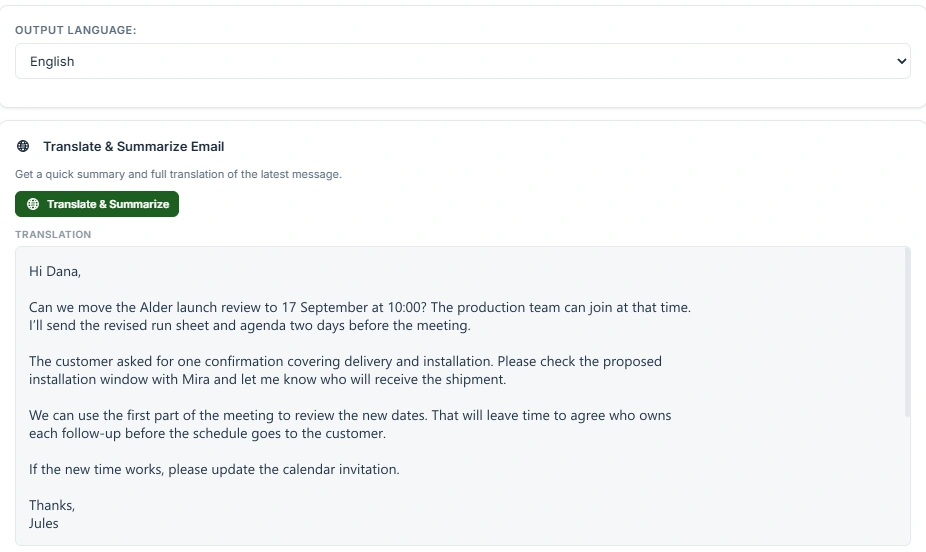
Translate incoming email into your working language. In the writing tools, translate your reply or new message into the language needed for the conversation. Review the translated text before sending.
Attachment summaries
Open Analyze attachments or Attachments, choose the file and use Extract & summarize. Text-based PDF, Word, Excel and CSV files are supported; scanned PDFs and old .doc files are not. For a long PDF, choose the pages to analyse.
SETUP & CONTROLSChoose the summary and language you need4 steps
- 01
Open the relevant email
Open Kerna beside the message. Use Analyze email in Gmail or Analyze in Outlook.
- 02
Choose the language and scope
Set the output language. Choose Translate & Summarize for the latest message, or Summarize Full Thread for the conversation.
- 03
Review the result with its source
Read the summary or translation alongside the original email. Long threads may be shortened to fit; review the source when you need a detail beyond the result.
- 04
Continue with the conversation
Prepare a reply, translate an outgoing draft or open attachment analysis if the document contains the information you need.
IN YOUR EXISTING INBOX
Where it works.
Gmail & Outlook
Gmail
Translate and summarise the latest message or summarise the full conversation from Analyze email.
Get Kerna for GmailInstallation & requirementsOutlook
Use Translate & Summarize for the current message or Summarize Full Thread for the conversation. Choose the output language in the panel.
Get Kerna for OutlookInstallation & requirementsA FEW PRACTICAL ANSWERS
Before you start.
Is Translate & Summarize the same as a full-thread summary?
No. Translate & Summarize works with the latest message, excluding the quoted history. Summarize Full Thread is the separate tool for the wider conversation.
Can I choose how detailed the summary is?
Yes. Summary Detail Level in Settings controls the level of detail. The output language can also be chosen in the analysis panel.
Can it read an image-only PDF?
No. Attachment analysis requires readable text. OCR for scanned or image-only PDFs is not currently supported.
Catch up before your next reply.
Try Kerna on a thread you know. Compare the summary with the source and see the decision that still needs you.