EXTRACT KEY INFORMATION & SMART FOCUS
Find the details. Put them where you need them.
Extract contacts, suggested meetings and tasks from a conversation. Add the business fields you care about with Smart Focus, then review the results and save useful dates, people and commitments from the same panel.
Gmail & Outlook · Understand and Coordinate
Free Starter plan · No card required
Follow an order and its commitments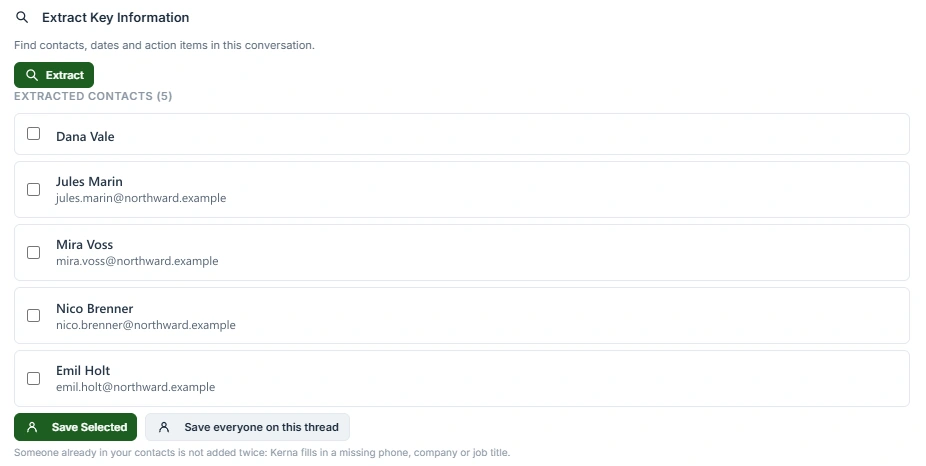
Useful details together
Find contacts, suggested events and action items in one place, with sections shown when information is found.
Your own Smart Focus
Ask for business fields such as order numbers, tracking IDs or renewal dates. Choose industry suggestions or define your own.
Follow through without retyping
Review the findings, then save the people, meetings and tasks you choose into your existing tools.
The business fields. The people. The commitments.
Smart Focus finds the references you choose. The same panel also helps you review and save the contacts, events and tasks found in the conversation.
Smart Focus: business fields you choose
Save a list of the details your business uses. Kerna looks for those fields when you press Extract and groups the values it finds together. The list is saved in your Kerna account.
Kerna in Gmail · Full view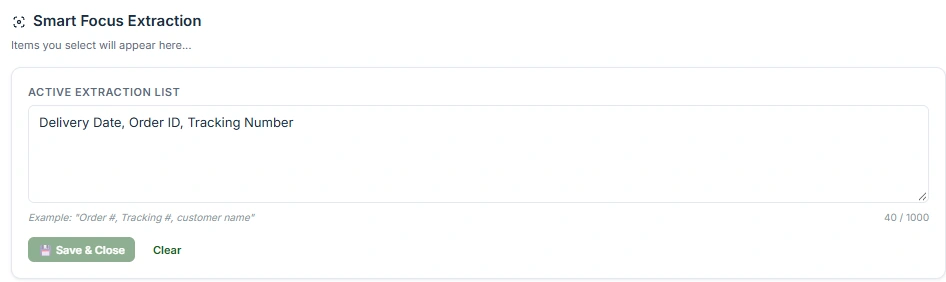
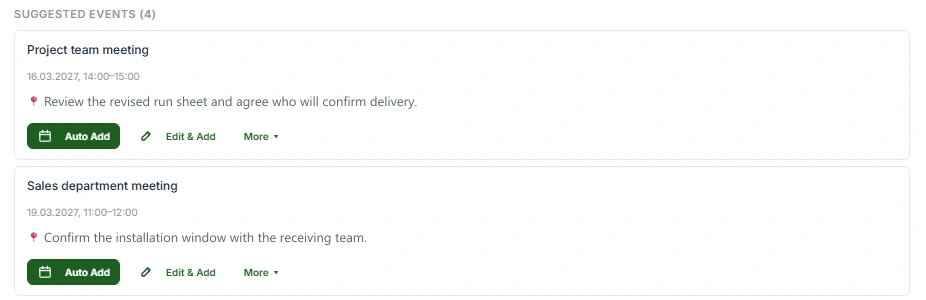
Calendar and meetings
Auto Add creates an event in your own calendar. Edit & Add lets you review a prefilled event first. Use the separate invitation or Google Meet/Teams controls to invite people; adding an event alone is not the same as sending an invitation.
Tasks and due dates
Select the suggested action items and add them to Google Tasks or Microsoft To Do, with due dates when found. Add and draft reply also prepares an acknowledgement for you to review.
Kerna in Gmail · Full view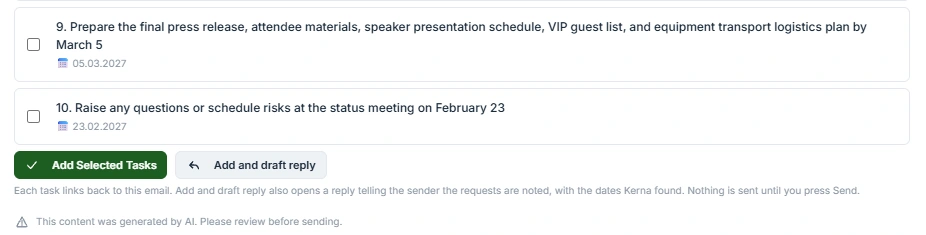
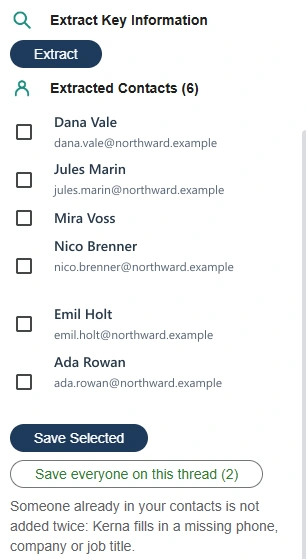
Contacts from the conversation
Save selected people or everyone on the thread. Kerna uses the contact details it finds and fills in missing information for existing contacts rather than creating another copy.
FOLLOW A REAL-WORLD TASK
One email. A reference, a meeting and a task.
An order conversation with a follow-up commitmentAn illustration of the workflow using example data.
YOU DOSave Order reference and Delivery date in Smart Focus, then press Extract.
The business details you asked to find.
- Order reference
- PO-4471
- Delivery date
- 26 June
Only values found in the message can be returned. Check the source and any missing fields.
YOU DOReview the suggested event, task and person in the extraction results.
The commitments are separate from the reference.
- Suggested meeting
- Delivery review · 24 June, 10:00
- Suggested task
- Confirm unloading contact · due 23 June
- Person
- Nora · Northline; review the available contact details
Confirm the year, time zone and duration before saving the meeting. Fill in details the email did not specify.
YOU DOChoose the individual results you want to add.
Put each detail where you will use it.
- Meeting
- Google Calendar or Outlook calendar
- Task
- Google Tasks or Microsoft To Do
- Person
- Google Contacts or Outlook contacts
Adding a calendar event is not the same as inviting attendees. Invitations use separate controls.
What changesThe order reference stays useful, and the meeting and follow-up become entries you can review and save.
SETUP & CONTROLSChoose your fields and save the useful results4 steps
- 01
Choose your Smart Focus fields
If you need extra business details, open Smart Focus settings and save the fields to look for. Contacts, events and tasks are available alongside these custom fields.
- 02
Extract from the conversation
Open the email in Analyze and choose Extract. Kerna shows the details it finds; Smart Focus does not run on every email automatically.
- 03
Check the suggested entries
Review the values, names, dates and tasks. Choose the contacts and tasks you want to save, or open the meeting details to edit them.
- 04
Save what is useful
Add an event to your calendar, save selected contacts or create tasks. Meeting invitations and replies use their own controls, so choose those deliberately when you want to involve others.
IN YOUR EXISTING INBOX
Where it works.
Gmail & Outlook · Understand and Coordinate
Gmail
Save selected results to Google Calendar, Google Tasks and Google Contacts. Smart Focus values can also be saved as tasks.
Get Kerna for GmailInstallation & requirementsOutlook
Save results to your Outlook calendar, Outlook contacts and Microsoft To Do. Smart Focus values can be copied or exported as Excel, Word or CSV.
Get Kerna for OutlookInstallation & requirementsA FEW PRACTICAL ANSWERS
Before you start.
Can I save the information straight from the results?
Yes. The extraction result includes controls to review and save the contacts, meetings and tasks you choose. Check the suggested details before adding them to your Google or Microsoft tools.
Does adding a meeting automatically invite everyone?
No. Auto Add saves the event in your own calendar. Invitations and Add with Google Meet or Add with Teams use separate controls. Teams meeting links require an eligible Outlook work or school account.
What if the suggested event clashes with my calendar?
Kerna checks for conflicts. Gmail asks you to use Edit & Add for a conflicting event. Outlook lets you choose Schedule anyway or Cancel.
Will Smart Focus find every field I request?
Only values that can be found in the source can be returned. Review the result before using it. Some sensitive financial or identity values may be hidden before email analysis.
Start with one email that has something to remember.
Extract the details, check what Kerna found and save the task, contact or meeting you need.